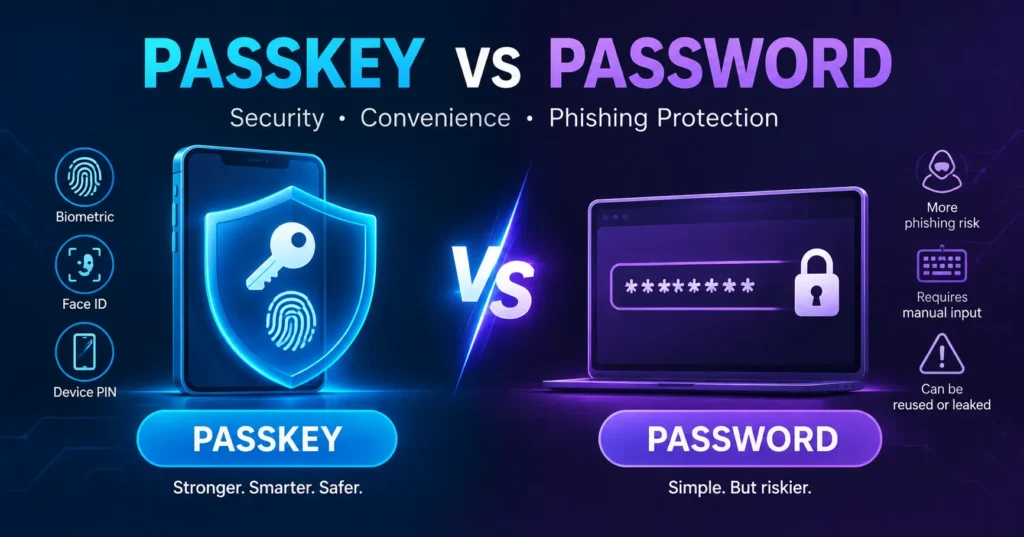
Passwords have guarded our accounts for decades, and they keep failing us. People reuse them, forget them, and hand them to scammers without realizing it. Passkeys promise a better way. But is the passkey vs password debate really that one-sided? This guide explains how each one works, compares their security, and shows where passkeys still fall short. By the end, you will know exactly when to switch.
Passkey vs Password: What Is the Difference?
A password is a secret you create and remember. You type it into a website, and the site checks it against a stored copy. Both sides know the secret. That shared setup is the core weakness. Anyone who learns your password can sign in as you, from anywhere, without your phone or your face. Password managers help, but they do not change this basic design.
A passkey replaces that shared secret with a pair of cryptographic keys. One key lives on the website’s server. The other stays on your device. You unlock it with a fingerprint, a face scan, or your device PIN. Nothing secret is typed or sent. The technology comes from the FIDO Alliance and the WebAuthn standard, and Apple, Google, and Microsoft all support it.
Here is the passkey vs password comparison at a glance:
| Feature | Passwords | Passkeys |
| What it is | A text string you create and memorize | A unique pair of cryptographic keys |
| How you log in | Typing, or password manager autofill | Face scan, fingerprint, or device PIN |
| Phishing resistance | Low | High |
| Data breach risk | High if the server leaks | Low, since servers hold only public keys |
| Credential reuse | Common | Not possible; each site gets a new keypair |
| Compatibility | Works everywhere | Growing, but not universal |
How Passkeys Work Behind the Scenes
When you create a passkey, your device generates two keys. The public key goes to the website and sits on its server. The private key stays locked inside your device’s secure hardware, or inside a passkey manager such as Bitwarden or Proton Pass. It never travels across the internet. That split is the whole trick, because the server never holds anything an attacker can use to impersonate you.
At login, the website sends your device a challenge. You prove it is really you by scanning your face, touching a fingerprint reader, or entering your PIN. That check happens locally and never leaves your device. Your device then signs the challenge with the private key. The server verifies the signature with your public key. Because no password crosses the network, there is nothing to intercept.
Here is the process in short:
- You tap “Sign in” on a website or app.
- The site sends your device a unique challenge.
- You approve with your face, fingerprint, or PIN.
- Your device signs the challenge with the private key.
- The site checks the signature with your public key and lets you in.
Passkey vs Password Security: Which Is Safer?
Passkeys win on security, and it is not close. Phishing is the biggest reason. A fake bank site can trick you into typing a password. It cannot trick a passkey, because the key only works for the real website’s domain. Your device simply refuses to answer a lookalike site. Think of it as a lock that recognizes only the real door. Even a convincing fake gets nothing.
Data breaches tell the same story. When a company leaks its password database, attackers can try those credentials on other sites. That is credential reuse at work. With passkeys, the server stores only public keys, which are useless on their own. Every site also gets its own unique key pair, so one breach cannot unlock your other accounts. The risk drops sharply, though it does not vanish entirely.
| Common threat | Password | Passkey |
| Fake login page | Vulnerable | Protected |
| Server data breach | Stolen passwords can be reused | Public keys are useless to thieves |
| Credential stuffing | Works if you reuse passwords | Not possible |
| Keylogger malware | Can capture what you type | Nothing is typed |
| Weak or guessable secret | Common problem | Not applicable |
The Downsides of Passkeys
The biggest catch is ecosystem lock-in. Create a passkey in Apple’s iCloud Keychain, and it syncs smoothly across your iPhone, iPad, and Mac. Using it on a Windows PC or an Android phone is clumsier. Google and Microsoft have similar built-in options, but they do not always talk to each other. Switching platforms can leave you re-registering passkeys one account at a time.
Two fixes are emerging. The first is the Credential Exchange Protocol, which aims to let you move passkeys between providers securely. Rollout is still underway, so do not count on it everywhere yet. The second is a cross-platform manager such as Bitwarden or Proton Pass, which stores passkeys outside any single vendor. Compatibility is the other gap: many websites still do not offer passkeys, so passwords remain necessary.
Keep these limits in mind:
- Passkeys do not move easily between Apple, Google, and Microsoft.
- Many sites and apps still require a password.
- You need working recovery options if a device is lost.
- Shared family or work accounts can be harder to manage.
How to Switch From Passwords to Passkeys
You do not have to choose one forever. Most sites that support passkeys still let you keep your password as a backup. Start with your most important accounts: email, banking, and your Apple, Google, or Microsoft login. Those are the keys to everything else. Then add passkeys to shopping and social accounts as sites support them. Keep passwords for the rest, and make each one unique.
The passkey vs password switch takes only a few minutes per account:
- Sign in on a device that has a fingerprint reader, face unlock, or PIN.
- Open the account’s security or sign-in settings.
- Select “Create a passkey” or “Add a passkey.”
- Approve with your face, fingerprint, or PIN.
- Choose where to save it, such as iCloud Keychain, Google Password Manager, or Bitwarden.
- Sign out and back in to confirm it works.
Before you commit, run a quick readiness check. The goal is simple: never get locked out if a phone is lost, broken, or replaced. A few minutes of setup now saves hours of account recovery later. Treat it as a habit, not a one-time chore. Use the list below as your guide, and revisit it whenever you buy a new device or change platforms.
- Passkey syncing is turned on for your phone or password manager
- A backup sign-in method is set up (recovery email, phone, or codes)
- Your device has a strong screen lock
- Your most important accounts have a passkey
- Remaining passwords are unique and stored in a manager
Conclusion
The passkey vs password question has a clear answer on security. Passkeys resist phishing, cannot be reused across sites, and leave nothing valuable on a company’s server. Logging in takes a glance or a touch instead of typing. Passwords, even strong ones stored in a manager, still depend on you entering them in the right place. That human step is exactly where most attacks succeed, and passkeys remove it.
Passwords still earn a place for now, because site support is uneven and moving passkeys between Apple, Google, and Microsoft takes effort. Start with your email and banking accounts. Use a cross-platform manager like Bitwarden or Proton Pass if you switch devices often, and keep every remaining password unique. Set up a recovery method before you commit. That approach gives you modern protection without risking a lockout.